Category: Atlas Forms — Developers & Designers
Tags:atlas-formscontrolscontrol-librarycustom-controlsform-schemareact
Hey team 
Atlas Forms ships with 88+ built-in controls — and if none of them fit your use case exactly, you can build your own. This post is the definitive reference for what’s available, how the control registry works, and how to create and register a custom control from scratch.
Whether you’re a designer picking controls in Form Studio or a developer wiring up a custom component, this has what you need.
 TL;DR
TL;DR
- Every control is identified by a
typestring in the form schema JSON — the engine looks this up in the control registry to find the React component to render - Controls are grouped into 7 categories: Input, Display, Chart, Gauge & Indicator, Layout & Structure, Advanced Input, File & Code
- To build a custom control: create a React component implementing
ControlProps, define aControlPlugin, and callcontrolRegistry.register()at app startup - Register before the first render — registering after means the engine won’t find your control
- The
propertySchemayou define drives the designer’s property panel automatically — no extra UI code needed
How the Control Registry Works
A form schema is a JSON document. Each field has a type property:
{
  "id": "customer_email",
  "type": "email",
  "label": "Customer Email",
  "required": true
}
When Atlas Forms renders this, it looks up "email" in the control registry, finds the registered React component, and mounts it with the resolved config. This means:
- Swap out any built-in control without touching form schemas
- Add entirely new control types
- Override defaults per-instance via the schema
Every registry entry conforms to the ControlPlugin interface:
interface ControlPlugin {
  type: string;                    // unique identifier, e.g. 'text'
  label: string;                   // name shown in the designer toolbar
  category: string;                // toolbar group, e.g. 'Input'
  description: string;             // tooltip / docs string
  icon: string;                    // icon key used by the designer UI
  defaultConfig: object;           // defaults applied when a new instance is created
  supportedValidations: string[];  // which built-in validators are available
  propertySchema: object;          // drives the property panel in the designer
  component?: React.ComponentType; // the React component (omitted for built-ins)
}
The
propertySchemais particularly useful: any property you define here automatically appears as an editable field in the designer’s property panel — no extra UI code required.
Input Controls
14 controls that capture user input and participate in validation and data binding.
| Control Type | Description | Key Properties | Validations | Use Case |
|---|---|---|---|---|
text |
Single-line text | placeholder, maxLength, minLength, pattern, autoComplete |
required, minLength, maxLength, pattern | Names, short free-text |
textarea |
Multi-line text | placeholder, rows, cols, maxLength, autoResize |
required, minLength, maxLength | Comments, notes |
number |
Numeric input with step controls | min, max, step, precision, prefix, suffix |
required, min, max, integer | Quantities, prices |
email |
Email with format enforcement | placeholder, maxLength, allowMultiple |
required, email, maxLength | Contact, registration |
url |
URL with protocol validation | placeholder, allowedProtocols |
required, url | Website fields |
password |
Masked text | minLength, showStrengthMeter, toggleVisibility |
required, minLength, pattern | Login, account creation |
select |
Single-value dropdown | options, placeholder, searchable, clearable |
required | Status, categories |
multiselect |
Multi-value dropdown | options, maxSelections, searchable |
required, minSelections, maxSelections | Tags, multi-category |
checkbox |
Boolean tick box | labelPosition, indeterminate |
required | Consent flags, toggles |
radio |
Single selection from visible list | options, layout, allowDeselect |
required | Mutually exclusive choices |
switch |
Toggle switch | onLabel, offLabel, size, color |
required | Feature flags, on/off |
date |
Date picker | format, minDate, maxDate, disabledDates, locale |
required, minDate, maxDate | Birthdates, scheduling |
datetime |
Date and time picker | format, minDateTime, maxDateTime, timezone, step |
required, minDateTime, maxDateTime | Appointments, timestamps |
json-editor |
Inline JSON with syntax highlighting | schema, height, readOnly |
required, jsonSchema | Configuration fields |
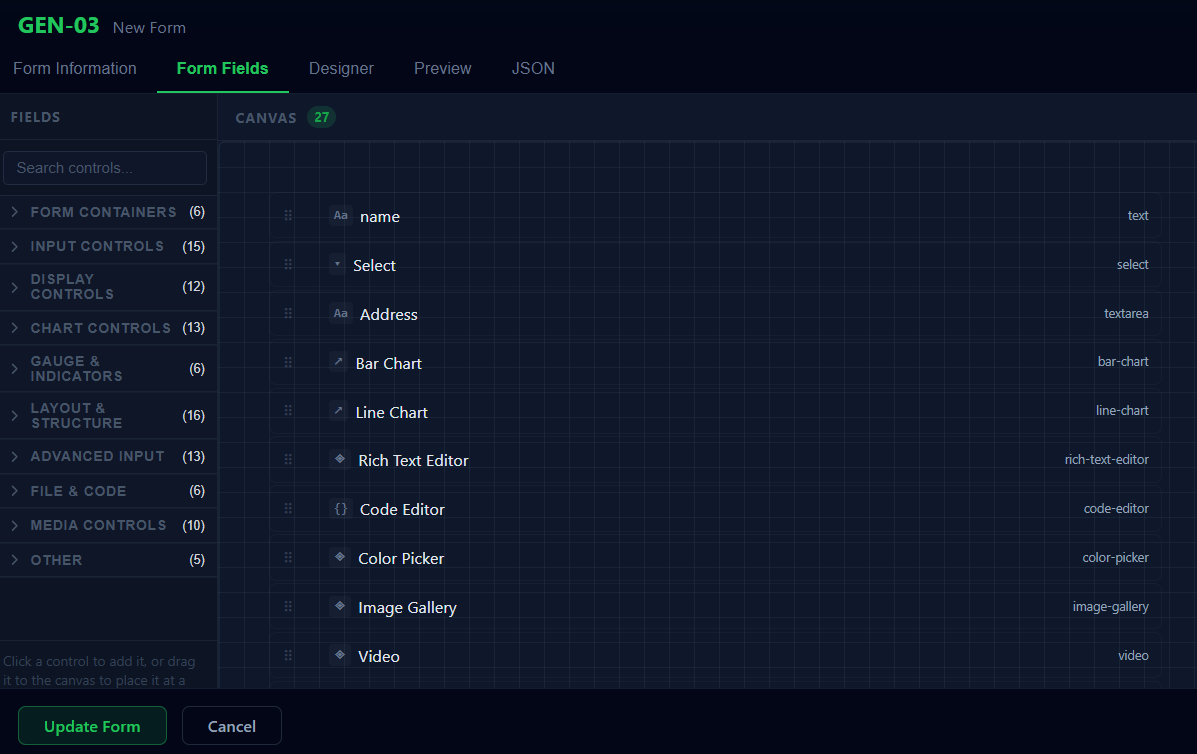
Display Controls
11 controls that render content — they don’t emit form values but can participate in conditional visibility and data binding.
| Control Type | Description | Key Properties | Use Case |
|---|---|---|---|
label |
Static text | text, variant, color, align |
Annotations, instructions |
header |
Section heading | text, level (h1–h6), divider, align |
Section separation |
image |
Static or dynamic image | src, alt, width, height, objectFit, fallbackSrc |
Logos, illustrations |
video |
Embedded video player | src, poster, autoPlay, controls, loop, muted |
Tutorial videos |
audio |
Audio player | src, autoPlay, controls, loop |
Pronunciation guides |
mermaid |
Renders a Mermaid diagram | definition (Mermaid DSL), theme, zoom |
Flowcharts, sequence diagrams |
article |
Formatted long-form content | content (Markdown or HTML), maxHeight, scroll |
Policy text, help articles |
html |
Raw HTML output | content, sanitize, sandbox |
Custom markup |
css |
Injects scoped CSS | styles, scope (form/global) |
Per-form styling |
pdf-viewer |
Embeds a PDF for reading | src, height, showToolbar, initialPage |
Contracts, reference docs |
iframe-viewer |
Embeds an external URL | src, height, allowFullscreen, sandbox |
Third-party widgets |
Chart Controls
13 data visualization controls. Data is bound to a form variable or API response. All share title, data, width, height, colorScheme, and responsive.
| Control Type | Description | Use Case |
|---|---|---|
bar-chart |
Vertical or horizontal bar chart | Category comparisons |
line-chart |
Line or multi-series line chart | Time-series trends |
pie-chart |
Pie or donut chart | Part-to-whole proportions |
area-chart |
Filled area chart | Cumulative volume over time |
scatter-plot |
X/Y scatter with optional bubble sizing | Correlation analysis |
bubble-chart |
Three-dimensional scatter (X, Y, size) | Multi-variable comparisons |
histogram |
Frequency distribution | Statistical distributions |
waterfall-chart |
Running total with +/- bars | Financial variance, P&L |
tree-map |
Hierarchical rectangular treemap | Proportional hierarchies |
heatmap |
2D color-intensity matrix | Activity calendars, correlations |
sankey-diagram |
Flow diagram with proportional bands | Process flows, fund flows |
network-graph |
Force-directed node-link diagram | Relationship maps |
gantt-chart |
Project timeline | Scheduling, roadmaps |
Gauge & Indicator Controls
6 controls that display a single numeric metric — no user input, no form value.
| Control Type | Description | Use Case |
|---|---|---|
circular-gauge |
Radial arc gauge | KPIs, utilization meters |
linear-gauge |
Horizontal or vertical bar gauge | Progress toward a target |
thermometer |
Vertical thermometer visual | Temperature, fill indicators |
progress-ring |
Circular progress (0–100) | Task completion |
password-strength-meter |
Visual password strength indicator | Account registration |
kpi-card |
Metric card with trend indicator | Executive dashboards |
Layout & Structure Controls
16 controls that organize other controls and govern navigation flow. These are container controls — they hold child controls as structural nodes in the schema tree.
| Control Type | Description | Use Case |
|---|---|---|
card-container |
Bordered card wrapper | Grouping related fields |
collapsible-panel |
Expandable/collapsible section | Optional field groups |
modal |
Overlay dialog | Confirmations, detail views |
enhanced-tabs |
Tabbed content area | Multi-step data entry |
accordion |
Stacked collapsible panels | FAQ sections, grouped settings |
stepper |
Wizard-style multi-step layout | Onboarding flows |
breadcrumb |
Navigation breadcrumb trail | Deep-hierarchy navigation |
sidebar-nav |
Persistent sidebar panel | Complex multi-section apps |
data-table |
Sortable, filterable, paginated grid | Tabular review and editing |
api-response-viewer |
Displays raw API response payloads | Debugging panels |
variable-inspector |
Shows current form variable state | Development debugging |
timeline |
Vertical event timeline | Activity logs, process history |
conditional-logic-viewer |
Visualises active conditional rules | Logic debugging |
analytics-dashboard |
Composite dashboard of chart controls | Embedded reporting |
database-query-builder |
Visual SQL-like query builder | Ad-hoc filtering |
form-container |
Embeds a nested child form | Sub-forms, master-detail layouts |
form-containertip: SetpropagateValidation: trueto roll the child form’s validation state up into the parent — the parent won’t submit unless the embedded form is also valid. Child values are written to the parent data model at the path you specify indataPath.
Advanced Input Controls
13 controls for richer data types and more complex interaction patterns.
| Control Type | Description | Use Case |
|---|---|---|
rich-text-editor |
WYSIWYG with formatting toolbar | Blog posts, formatted notes |
code-editor |
Syntax-highlighted code editor | Configuration, script input |
color-picker |
Color selection with hex/rgb input | Theme customization |
slider-range |
Single or dual-handle range slider | Price filters, percentage |
date-range-picker |
Dual calendar for start/end dates | Booking, report ranges |
time-picker |
Hour/minute/second selection | Scheduling, opening hours |
location-picker |
Map-based coordinate/address picker | Delivery addresses, venues |
tree-select |
Hierarchical tree, single selection | Category trees, org charts |
cascading-select |
Multi-level chained dropdowns | Country / region / city |
multi-select-search |
Searchable multi-select with async load | User/tag lookup |
tag-input |
Free-form tag entry | Keyword tagging |
enhanced-json-editor |
Full JSON editor with schema validation | Complex config objects |
key-value-pairs |
Dynamic list of key-value entries | HTTP headers, env variables |
File & Code Controls
6 controls for file assets and code blocks within a form.
| Control Type | Description | Use Case |
|---|---|---|
css-file-selector |
File picker filtered to .css files |
Importing stylesheets |
js-file-selector |
File picker filtered to .js/.ts files |
Uploading scripts |
javascript-block |
Inline JS executed in the form sandbox | Custom calculations |
style-block |
Inline CSS applied to the form | Runtime style overrides |
html-block |
Raw HTML rendered as a form element | Custom markup, embeds |
asset-manager |
Browse, upload, and reference media | Image uploads, attachments |
Building a Custom Control
Here’s the full walkthrough — we’ll build a rating control (1–5 stars).
Step 1: Create the React Component
Your component receives ControlProps: value, onChange, config, and validationState.
// src/controls/RatingControl.tsx
import React from 'react';
import type { ControlProps } from '@atlas-forms/types';

interface RatingConfig {
  maxStars: number;
  allowHalf: boolean;
}

const RatingControl: React.FC<ControlProps<number, RatingConfig>> = ({
  value,
  onChange,
  config,
  validationState,
}) => {
  const { maxStars = 5 } = config;

  return (
    <div
      className={`af-rating ${validationState?.invalid ? 'af-rating--error' : ''}`}
      role="group"
      aria-label="Star rating"
    >
      {Array.from({ length: maxStars }, (_, i) => i + 1).map((star) => (
        <button
          key={star}
          type="button"
          aria-label={`${star} star${star > 1 ? 's' : ''}`}
          aria-pressed={value >= star}
          className={`af-rating__star ${value >= star ? 'af-rating__star--active' : ''}`}
          onClick={() => onChange(star)}
        >
          ★
        </button>
      ))}
      {validationState?.message && (
        <span className="af-rating__error">{validationState.message}</span>
      )}
    </div>
  );
};

export default RatingControl;
Key rules:
- Call
onChange(newValue)on change — don’t manage value in local state - Respect
configfor all behaviour variations - Render
validationState.messagewhen present - Respect
disabledandreadOnlyprops fromControlProps
Step 2: Define the ControlPlugin
// src/controls/ratingPlugin.ts
import type { ControlPlugin } from '@atlas-forms/control-registry-js';
import RatingControl from './RatingControl';

const ratingPlugin: ControlPlugin = {
  type: 'rating',
  label: 'Star Rating',
  category: 'Input',
  description: '1–5 star rating selector for satisfaction surveys.',
  icon: 'star',
  defaultConfig: { maxStars: 5, allowHalf: false },
  supportedValidations: ['required'],
  component: RatingControl,
  propertySchema: {
    maxStars: { type: 'number', label: 'Max Stars', default: 5, min: 1, max: 10 },
    allowHalf: { type: 'boolean', label: 'Allow Half Stars', default: false },
  },
};

export default ratingPlugin;
Step 3: Register at App Startup
// src/main.tsx
import { controlRegistry } from '@atlas-forms/control-registry-js';
import ratingPlugin from './controls/ratingPlugin';

controlRegistry.register(ratingPlugin);
register()throws if the type is already taken. UsecontrolRegistry.registerOrReplace(plugin)to override a built-in, orunregister('rating')first.
Step 4: Use in a Form Schema
{
  "id": "product_rating",
  "type": "rating",
  "label": "How would you rate this product?",
  "required": true,
  "config": { "maxStars": 5, "allowHalf": false }
}
Step 5: Designer Toolbar
Your control appears automatically in the Input group once registered. To control its position:
const ratingPlugin: ControlPlugin = {
  // ...
  sortOrder: 50,  // built-ins range 0–100; lower numbers appear first
};
If you’re packaging controls as a shared library, export the plugins and document that consumers must call
controlRegistry.register()in their entry point. Don’t auto-register on import — it breaks tree-shaking and SSR.
Common Control Properties
These are recognised by the engine across most controls:
| Property | Type | Default | Description |
|---|---|---|---|
id |
string |
— | Required. Unique identifier; key in submitted data |
label |
string |
"" |
Visible label; supports {{variableName}} interpolation |
placeholder |
string |
"" |
Ghost text in empty inputs |
defaultValue |
any |
undefined |
Pre-populated value on load |
required |
boolean |
false |
Marks field as mandatory |
disabled |
boolean |
false |
Blocks interaction; value still submitted |
readOnly |
boolean |
false |
Shows value without allowing edits |
hidden |
boolean |
false |
Hides from UI; value still in data model |
className |
string |
"" |
Extra CSS class names on the root element |
validationRules |
ValidationRule[] |
[] |
Array of validation rule objects |
conditionalVisibility |
ConditionGroup |
undefined |
Declarative show/hide based on other field values |
dataPath |
string |
undefined |
Dot-notation two-way binding path (e.g., "customer.address.city") |
tooltip |
string |
undefined |
Info text shown in a tooltip beside the label |
helpText |
string |
undefined |
Persistent help text below the control |
Validation Rule Schema
interface ValidationRule {
  type: string;      // 'required', 'minLength', 'pattern', 'custom', etc.
  value?: any;       // rule parameter — e.g. 5 for minLength, regex for pattern
  message?: string;  // override the default error message
  trigger?: 'onChange' | 'onBlur' | 'onSubmit'; // default: 'onBlur'
}
Example — a username field with layered rules:
{
  "id": "username",
  "type": "text",
  "label": "Username",
  "required": true,
  "validationRules": [
    { "type": "minLength", "value": 3, "message": "Username must be at least 3 characters." },
    { "type": "maxLength", "value": 20 },
    { "type": "pattern", "value": "^[a-zA-Z0-9_]+$", "message": "Only letters, numbers, and underscores are allowed." }
  ]
}
 Community Discussion
- Which controls are you using most? Would be useful to know what’s getting real usage vs. what’s more niche.
- Custom controls — has anyone in the team built one? If you share your
ControlPluginhere, others can reuse it instead of rebuilding from scratch. form-containerfor sub-forms — has anyone used it for a master-detail layout? ThepropagateValidationbehaviour is interesting — would love to see a real-world example.- Chart controls in forms — embedding dashboards inside a form is a less obvious use case. If you’ve done it, share how you bound the chart data.
- Gaps? — if you’re looking for a control that isn’t in the list, call it out. Might already exist under a different name, or might be worth adding to the backlog.
Last updated: 2026-04-08 | Atlas Forms 1.x